Edit Partitions

Edit Partitions
You can adjust the partitions size or location on the destination disk in Disk Restore/Disk Clone mode. On the "Operation Summary" page, click the "Edit Partitions" button.
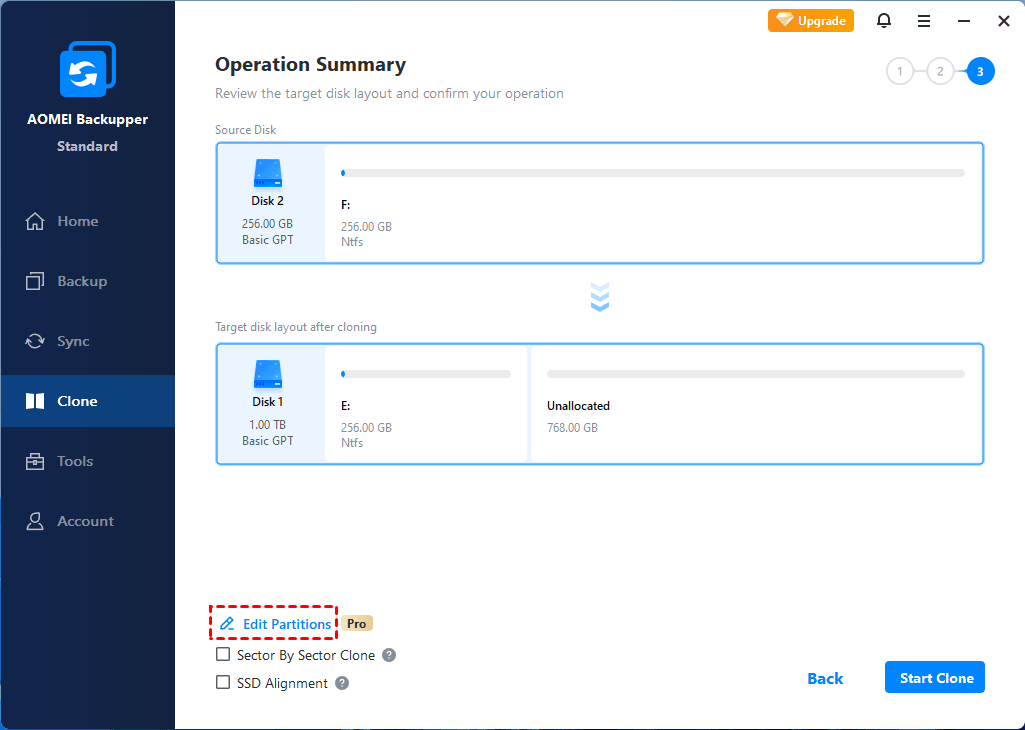
In the Edit Partitions dialog, three further options are provided:
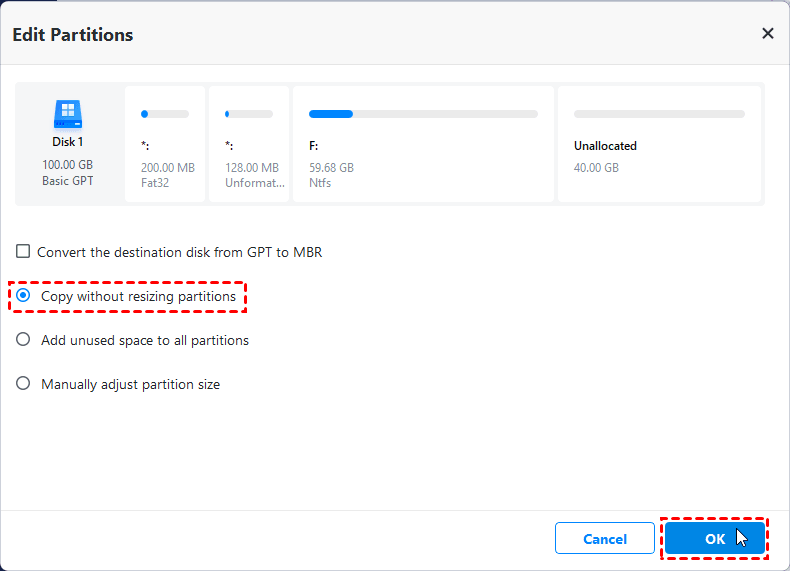
-
Copy without resizing partitions: Do not change anything.
-
Add unused space to all partitions: The destination disk partitions will be automatically resized to the entire disk, appropriate for the disk size.
-
Manually adjust partition size: Manually adjust the partition size and location by dragging the slider bar.
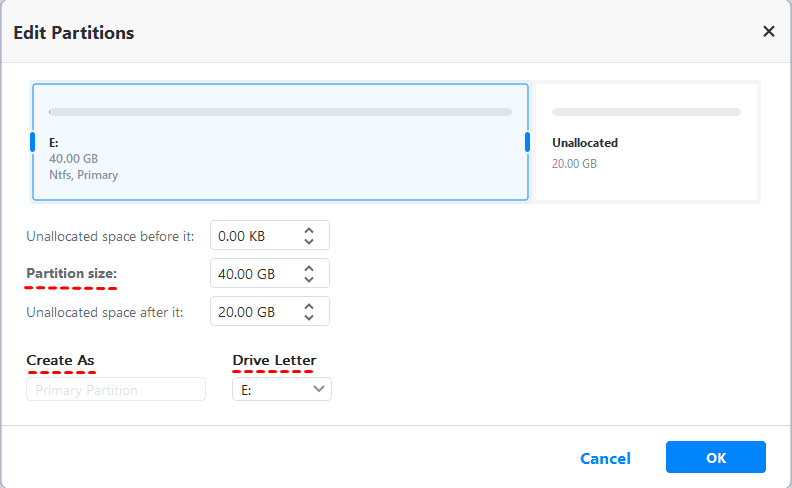
Please select the "Edit Partitions" button on the Operation Summary page when a system drive or a partition is restored/cloned. A pop-up window enables a drive letter to be assigned and allows the setting of primary/logical status to the partition. The graphical Partition Bar can be dragged and moved to change the size or location of the partition.
Notes:
- If a restore system/partition image includes multiple partitions, Backupper doesn't support editing partitions on the Operation Summary page.
- Clone system with multiple partitions. Backupper doesn't support editing partitions on the Operation Summary page.
- If using the sector-by-sector mode in disk restore/clone, the "Edit partitions on the destination disk" button is unavailable.